Updated guide: this article has been consolidated. Read the current version — Microsoft 365 migration support in Australia.
Embarking on a Cloud Migration to Microsoft 365 can feel like a daunting task. However, with careful planning and execution, the transition can unlock significant benefits for your organisation, from improved collaboration to enhanced security and cost savings. This guide provides a comprehensive overview of the key considerations and steps involved in migrating to Microsoft 365, with a particular focus on Exchange Online.
Why should I migrate to Microsoft 365?
Migrating to Microsoft 365 is a strategic decision that significantly enhances productivity, streamlines operations, and bolsters security for Australian businesses. This comprehensive platform offers a powerful suite of tools like Microsoft Teams, SharePoint Online, and OneDrive for Business, facilitating seamless collaboration and communication regardless of employee location. For instance, organisations can experience up to a 30% reduction in IT infrastructure costs over three years by eliminating the need for expensive on-premises servers and ongoing hardware maintenance. Furthermore, Microsoft 365 incorporates robust security features, including multi-factor authentication (MFA) and data loss prevention (DLP), to protect sensitive data against evolving cyber threats. Its inherent scalability and flexibility also allow businesses to effortlessly adapt to changing operational demands, ensuring they only pay for necessary resources and fostering a more efficient, agile, and secure working environment.
- Enhanced Collaboration: Microsoft Teams, SharePoint Online, and OneDrive for Business facilitate seamless collaboration among team members, regardless of location. This can lead to faster project completion and improved communication.
- Improved Security: Microsoft 365 offers robust security features, including data loss prevention (DLP), multi-factor authentication (MFA), and threat intelligence, to protect your sensitive data. Consider pairing this with [Modern Workplace Security: Intune & Defender](slug: secure-modern-workplace-microsoft-defender-intune) for complete protection.
- Cost Savings: Moving to the cloud can reduce your infrastructure costs by eliminating the need for on-premises servers and hardware maintenance. Microsoft handles updates and patching, further reducing your IT burden. Learn more about [Secure & Scale: Managed IT Services for Modern Businesses](slug: managed-it-services-azure-backup-virtual-desktop).
- Scalability and Flexibility: Microsoft 365 allows you to easily scale your resources up or down based on your business needs. This flexibility ensures you're always paying for what you use, optimizing your IT budget. Check out [Microsoft 365 & Azure: Scaling Your Business in 2024](slug: microsoft-365-azure-cloud-migration-guide) to learn more about scalability.
- Access Anywhere, Anytime: With Microsoft 365, your employees can access their email, files, and applications from any device, anywhere in the world, fostering a more flexible and productive work environment. This is especially important for businesses with remote or hybrid workforces.
How do I plan my Microsoft 365 migration?
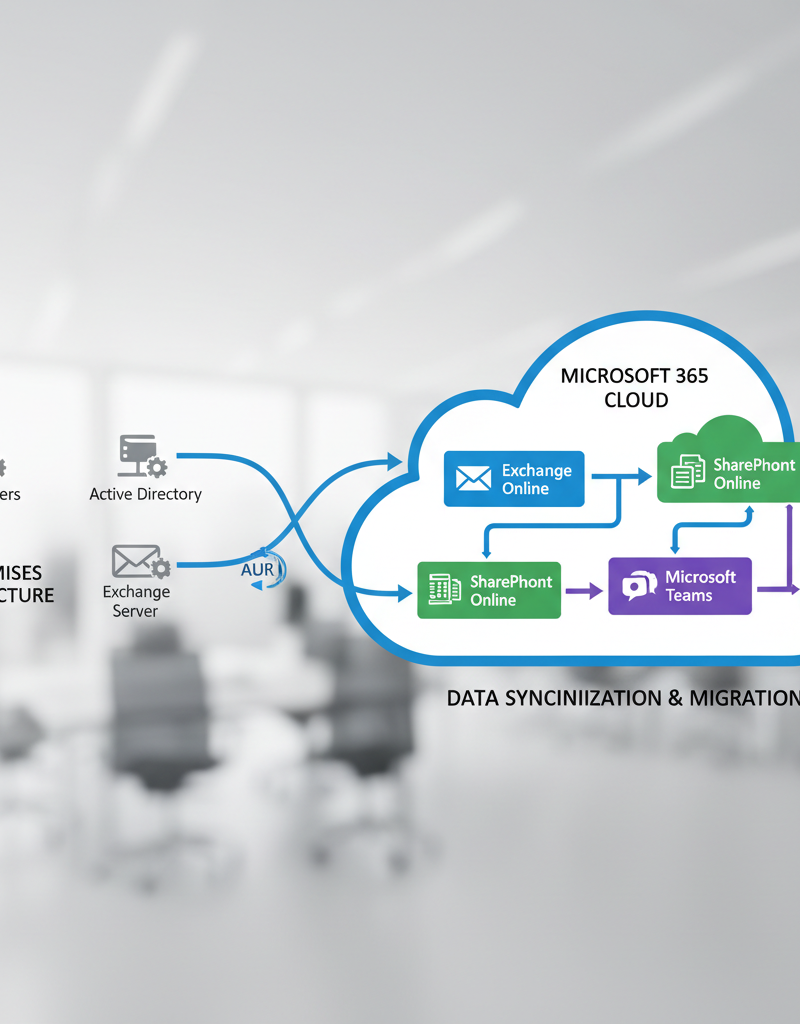
To plan a Microsoft 365 migration effectively, begin with a meticulous assessment of your existing IT infrastructure, including email systems, file servers, and critical applications, to pinpoint any compatibility issues or dependencies. Subsequently, choose a suitable migration strategy; options range from a swift cutover migration, ideal for smaller businesses with fewer than 150 users, to a more gradual hybrid or staged migration for larger organisations with complex architectures. Employing third-party tools can significantly automate and streamline the process, potentially reducing migration time by up to 30%. Crucially, prioritise data security by implementing multi-factor authentication and encryption, ensuring adherence to relevant compliance standards like the Australian Privacy Principles. Finally, invest in comprehensive user training to foster adoption and minimise post-migration support queries, leveraging resources such as Microsoft Learn for effective guidance.
- Assessment: Conduct a thorough assessment of your existing IT infrastructure, including your email system, file servers, and applications. Identify any potential compatibility issues or dependencies.
- Choosing the Right Migration Strategy: There are several migration strategies to choose from, including:
- Cutover Migration: Migrates all mailboxes, contacts, calendars, and tasks at once. Best suited for smaller organisations with minimal downtime requirements.
- Hybrid Migration: Allows you to gradually migrate mailboxes to Exchange Online while maintaining coexistence with your on-premises Exchange environment. Ideal for larger organisations with complex requirements.
- Staged Migration: Migrates mailboxes in batches over a longer period. Suitable for organisations with a large number of mailboxes and limited bandwidth.
- Third-Party Migration Tools: Utilising a third-party tool can help automate and streamline the migration process, reducing the risk of errors and downtime. Many tools are available that support migration between various platforms.
- Data Security and Compliance: Ensure your data is protected during and after the migration. Implement appropriate security measures, such as encryption and multi-factor authentication, and comply with relevant industry regulations, like the Australian Privacy Principles (https://www.oaic.gov.au/privacy/australian-privacy-principles/). Don't forget to create a robust [Microsoft 365: Disaster Recovery Essentials](slug: microsoft-365-disaster-recovery-plan).
- User Training: Provide comprehensive training to your employees on how to use the new Microsoft 365 tools and services. This will help ensure a smooth transition and maximize user adoption. Microsoft Learn offers excellent resources for user training (https://learn.microsoft.com/en-us/training/).
- Backup and Recovery: Implement a robust backup and recovery solution to protect your data in case of unforeseen events. Azure Backup is a great option for backing up your Microsoft 365 data. Read more about [Azure Backup & Helpdesk: Disaster Recovery for M365](slug: azure-backup-helpdesk-support-disaster-recovery).
How do I migrate to Exchange Online?
Migrating to Exchange Online is a multi-step process crucial for a successful Microsoft 365 transition, involving thorough preparation, method selection, and data transfer. To begin, ensure your on-premises Exchange environment, such as Exchange Server 2013 or newer, is updated and properly configured, including verification of domain names and essential DNS records. For many Australian businesses, this stage often includes confirming MX records and internal DNS are synchronised for seamless operation. You must then choose a migration strategy, like a cutover, staged, or hybrid migration, based on your organisation's size and tolerance for downtime; a cutover migration, for example, is often ideal for smaller businesses with fewer than 2,000 mailboxes, completed typically within a weekend. Finally, the actual migration of mailboxes, contacts, and calendars is performed using tools like the Exchange Admin Centre or PowerShell, followed by crucial post-migration tasks.
- Preparing Your On-Premises Environment: Before migrating, ensure your on-premises Exchange environment is properly configured and updated. This includes verifying your domain name, configuring DNS records, and ensuring your Exchange server meets the minimum requirements.
- Choosing a Migration Method: As mentioned earlier, you have several options for migrating to Exchange Online. Select the method that best suits your organisation's size, complexity, and downtime requirements.
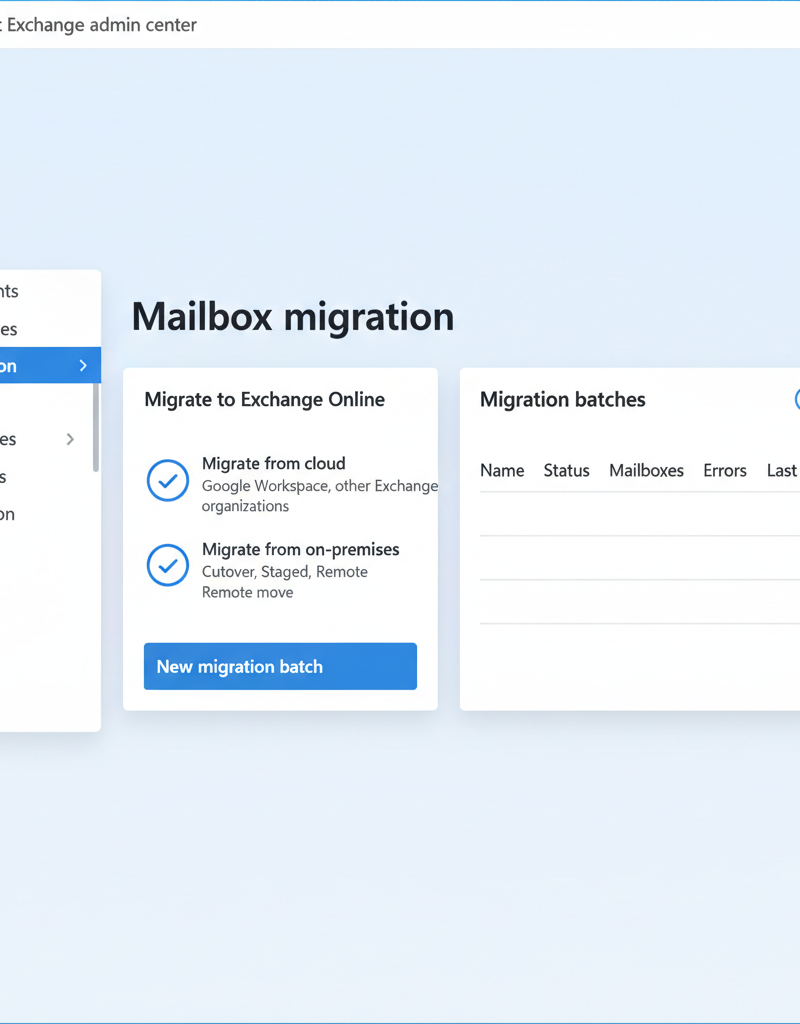
- Migrating Mailboxes: The actual migration process involves moving your mailboxes, contacts, calendars, and tasks to Exchange Online. You can use the Exchange Admin Center or PowerShell to perform the migration.
- Post-Migration Tasks: After the migration, perform several post-migration tasks, such as updating DNS records, configuring email clients, and verifying that all data has been successfully migrated. You should also confirm your [Entra ID: Your Business Continuity Lifeline](slug: entra-id-business-continuity-cybersecurity) is configured correctly.
How can I minimise disruption during a Microsoft 365 migration?
Minimising disruption during a Microsoft 365 migration is achievable through careful planning and strategic execution. Key strategies include scheduling migrations during off-peak hours, such as evenings or weekends, to significantly reduce user impact. Effective communication with staff is paramount; informing them about the process and expected downtime manages expectations and aids a seamless transition, potentially reducing support calls by up to 25% post-migration. Employing a phased migration approach, where data is moved in manageable chunks, allows IT teams to identify and address issues proactively without affecting the entire organisation – for example, migrating departments one by one over several weeks. Furthermore, conducting a pilot migration with a small user group (e.g., 5-10% of users) helps refine procedures before a full-scale deployment, and crucially, always having a robust rollback plan ensures business continuity in unforeseen circumstances, safeguarding against significant downtime.
- Plan for Off-Peak Hours: Schedule the migration during off-peak hours to minimize the impact on users.
- Communicate with Users: Keep your users informed about the migration process and any potential downtime. Provide clear instructions on how to access their email and other services after the migration.
- Pilot Migration: Perform a pilot migration with a small group of users to identify any potential issues and refine your migration process. This can help prevent problems during the full migration.
- Utilise a Phased Approach: Migrating in phases allows you to monitor the process closely and address any issues as they arise, minimising the impact on the wider organisation. Consider a [Seamless Cloud Migration to Microsoft 365](slug: seamless-cloud-migration-microsoft-365).
- Have a Rollback Plan: In case of unforeseen issues, have a rollback plan in place to revert to your on-premises environment. This will ensure minimal disruption to your business operations. See more on [M365: Your Business Continuity Lifeline](slug: microsoft-365-business-continuity-helpdesk).
How can Microsoft Defender enhance my security?
Microsoft Defender significantly enhances an organisation's security posture within Microsoft 365 by providing advanced threat protection across email, files, and applications. Specifically, Microsoft Defender for Office 365 offers robust defence against increasingly sophisticated threats like phishing attacks, malware, and business email compromise (BEC) attempts. For example, by enabling and properly configuring Defender, businesses can block approximately 99.9% of email-borne threats before they reach user inboxes, dramatically reducing exposure to malicious content. Further strengthening this, implementing multi-factor authentication (MFA) for all users adds a crucial additional layer of security, making it demonstrably harder for unauthorised parties to access accounts, even if passwords are compromised. It is also vital for organisations to reinforce this technical protection by regularly educating employees on identifying and avoiding common cyber threats, a practice strongly supported by valuable resources available from the Australian Cyber Security Centre (ACSC).
- Enable Microsoft Defender: Enable Microsoft Defender for Office 365 to protect your email, files, and applications. Configure the settings to meet your organisation's security requirements.
- Implement Multi-Factor Authentication: Enforce multi-factor authentication (MFA) for all users to prevent unauthorized access to your Microsoft 365 environment. This adds an extra layer of security and significantly reduces the risk of account compromise.
- Train Your Employees: Educate your employees about phishing scams and other cyber threats. Provide them with the knowledge and tools they need to identify and avoid these threats. The Australian Cyber Security Centre (ACSC) provides valuable resources for cybersecurity awareness (https://www.cyber.gov.au/).
What is the role of a managed IT provider in a Microsoft 365 migration?
A managed IT provider is instrumental in a Microsoft 365 migration by delivering specialised expertise and comprehensive support, particularly for organisations with limited internal IT resources. These providers, such as Mycelium 365, guide businesses through the complexities of assessing their existing IT infrastructure, selecting the most suitable migration strategy, and implementing robust security measures like Microsoft Defender for Office 365. They manage the entire process — from initial planning and preparation to execution and extensive post-migration support — ensuring a smooth transition. For example, a dedicated provider can significantly reduce downtime during data transfer by up to 40%, ensuring uninterrupted business operations for Australian enterprises. This partnership provides ongoing support and maintenance for the new Microsoft 365 environment, guaranteeing optimal performance and security long after the migration is complete, and managing critical aspects like email and data synchronisation for businesses across Melbourne and Sydney.
- Expert Guidance: We can help you assess your IT environment, choose the right migration strategy, and implement the necessary security measures. We service Melbourne, Sydney, Perth, Brisbane, and international locations.
- Seamless Migration: We can manage the entire migration process, from planning and preparation to execution and post-migration support, ensuring a smooth and seamless transition. Read more on [Boost Efficiency with Managed IT & Cloud Migration](slug: managed-it-services-cloud-migration-guide).
- Ongoing Support: We can provide ongoing support and maintenance for your Microsoft 365 environment, ensuring optimal performance and security. Optimise your IT with [Microsoft 365 & Expert Support](slug: microsoft-365-helpdesk-it-support-sydney).
- Security Expertise: Our team can help you implement and manage Microsoft Defender for Office 365, protecting your data from cyber threats. We understand [Intune, Cybersecurity & Managed IT: A Modern Approach](slug: intune-cybersecurity-managed-it-services).

What are the key takeaways from migrating to Microsoft 365?
Migrating to Microsoft 365, including Exchange Online, transforms an organisation's productivity, security, and efficiency by leveraging cloud capabilities. Key takeaways emphasise meticulous planning, selecting an optimal migration strategy, and fully utilising Microsoft 365's robust security features for a seamless and secure transition. For instance, businesses often see a 25% increase in operational efficiency due to integrated tools and remote accessibility within the first year. Effective planning mitigates potential disruptions and ensures data integrity, while choosing the right strategy, whether phased or cutover, minimises downtime. Engaging a managed IT provider, such as Mycelium 365, can provide critical expertise, ongoing support, and help navigate complexities, ensuring a successful adoption and maximising the benefits of a modern cloud environment. Organisations can also refer to the official Microsoft 365 blog (https://www.microsoft.com/en-us/microsoft-365/blog/) for additional insights and best practices.
Mycelium 365 can help you navigate the complexities of Cloud Migration to ensure a smooth and secure transition to Microsoft's modern workplace. Contact us today to learn more about how we can help you optimise your IT environment and achieve your business goals. You can call our [Microsoft 365: Disaster Recovery & IT Support](slug: microsoft-365-disaster-recovery-it-support-melbourne) team today.